

Landingpage Content
In the CMS context, a landing page refers to a special page type or configuration, which is often set up as its own content type. It consists of freely combinable components or paragraphs.
The “Landingpage” content type is used when you want to create a page with a clear goal, where the content can be flexibly assembled and the technical setup supports campaigns or specific conversion objectives. This type represents the standard way to publish a general promotional landing page in the webshop.
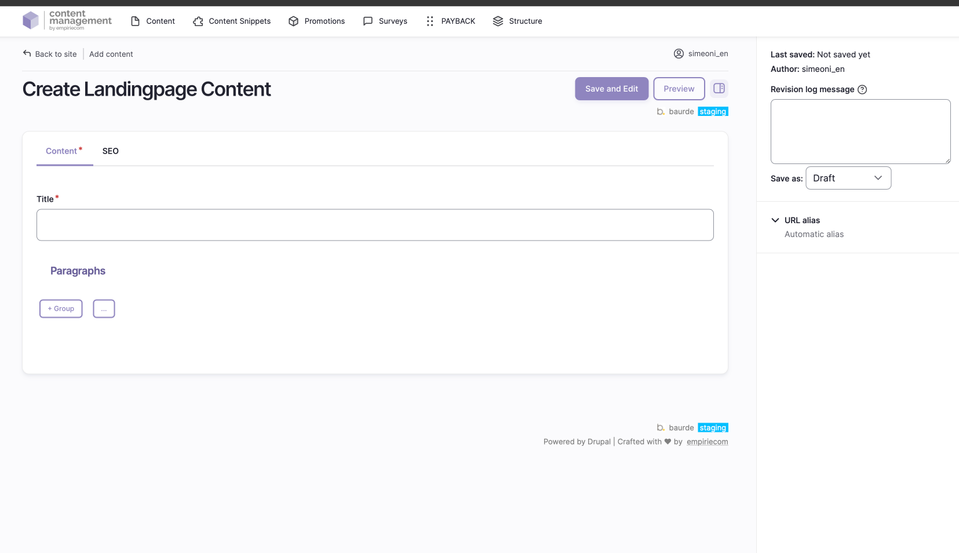
What can editors publish with this content type?
- Campaign landing pages with individual content and layout
- Pages for promotions, vouchers, or special campaigns
- Content with a flexible structure using freely selectable components
- Pages where navigation, header, or footer can be deliberately hidden to increase conversion
How to create new Landingpage Content
- In the top menu, open the second bar and select: Content → Add Content → Landingpage Content.
- Drupal creates a new page with a unique ID of the type “Landingpage Content”.
- Enter a name for the page in the mandatory “Title” field (e.g., “Voucher” or “Action123”).
- Click “Save” at the bottom left to create the page; it will appear as an empty entry in the content overview and can then be further edited.
Fields and Options
| Field | Description |
|---|---|
Title | The name of the page (required). |
ADD Paragraph | Add sections/building blocks; the available paragraphs are identical on all pages. Details about the paragraph blocks are described in a separate chapter. |
Save as | Set the status when saving: Draft, Published, or Unpublished. |
Publication Workflow
- When saving, select the desired status via “Save as” (Draft, Published, Unpublished).
- After the first save, the page appears in the content overview and can be further edited.
Not covered on this page
- Navigation, header, or footer: configuration is handled individually for each landing page.
- Image sizes and formats: documented separately.
- Detailed description of paragraph blocks: see separate chapter.