

Magazine Content
The “Magazine” content type is used to publish editorial magazine pages in the webshop. Its main feature is the extensive metadata and tagging, which are managed and stored together with the actual content. Through tagging, a magazine page can later be found and displayed together with other thematically relevant pages—there is no need for a classic tree structure. Linking is done via tags; for example, clicking on the tag #jeans will display all magazine pages tagged with “jeans”.
For the overview and presentation, an appropriate teaser image, headline, and short description are maintained. This allows magazine pages to be presented similarly to product recommendations—instead of products, relevant magazine pages are displayed.
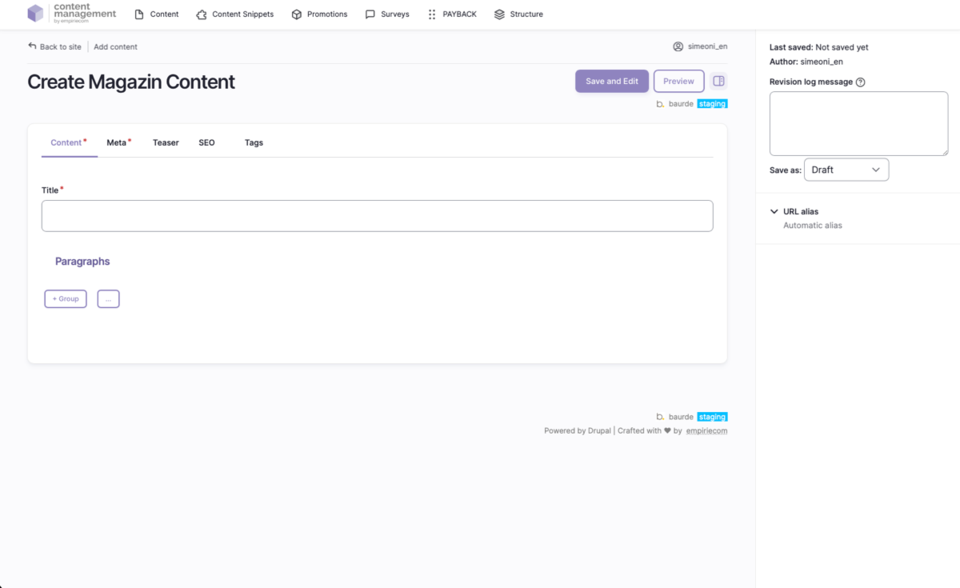
What can editors publish with this content type?
- Editorial magazine pages with extensive metadata
- Content on specific topics, interconnected via tags
- Pages with individual teaser images, headlines, and short descriptions for attractive overview displays
How to create new Magazine Content
- In the top menu, open the second bar and select: Content → Add Content → Magazine Content.
- Drupal creates a new page with a unique ID of the type “Magazine Content”.
- In the “Content” tab, fill in the required “Title” field (e.g., “Magazine – Fashion” or “Magazine – Technology”).
- In the “Meta” tab, complete the required fields: “Headline Short”, “Headline Long”, “Description Short”, and “Description Long”. These are automatically shown on the overview page.
- In the “Teaser” tab, add a teaser image for the magazine overview.
- In the “Tags” tab, select the appropriate tags. Available tags are centrally managed as a taxonomy.
- In the “SEO” tab, optionally fill in the “Title” and “Description” fields for search engines.
- Click “Save” at the bottom left to create the page; it will appear as an empty entry in the content overview and can then be further edited.
Fields and Options
| Field | Description |
|---|---|
Title | The name of the page (required). |
Meta | Required fields: “Headline Short”, “Headline Long”, “Description Short”, “Description Long” for the overview display. |
Teaser | Teaser image for automatic listing in the magazine overview. |
Tags | Tagging via centrally managed taxonomy; enables thematic linking and discoverability. |
SEO | Optional fields for SEO title and description. |
ADD Paragraph | Add sections/building blocks; available paragraphs are identical on all pages. Details about the paragraph blocks are described in a separate chapter. |
Save as | Set the status when saving: Draft, Published, or Unpublished. |
Publication Workflow
- When saving, select the desired status via “Save as” (Draft, Published, Unpublished).
- After the first save, the page appears in the content overview and can be further edited.
Not covered on this page
- Image sizes and formats: documented separately.
- Detailed description of paragraph blocks: see separate chapter.