

Paragraph Headline
The “Headline” paragraph allows editors to flexibly insert headings on CMS pages and adapt them to specific requirements. Various HTML hierarchies, font sizes, and font families are available. Additionally, sublines can be added and numerous other options can be configured.
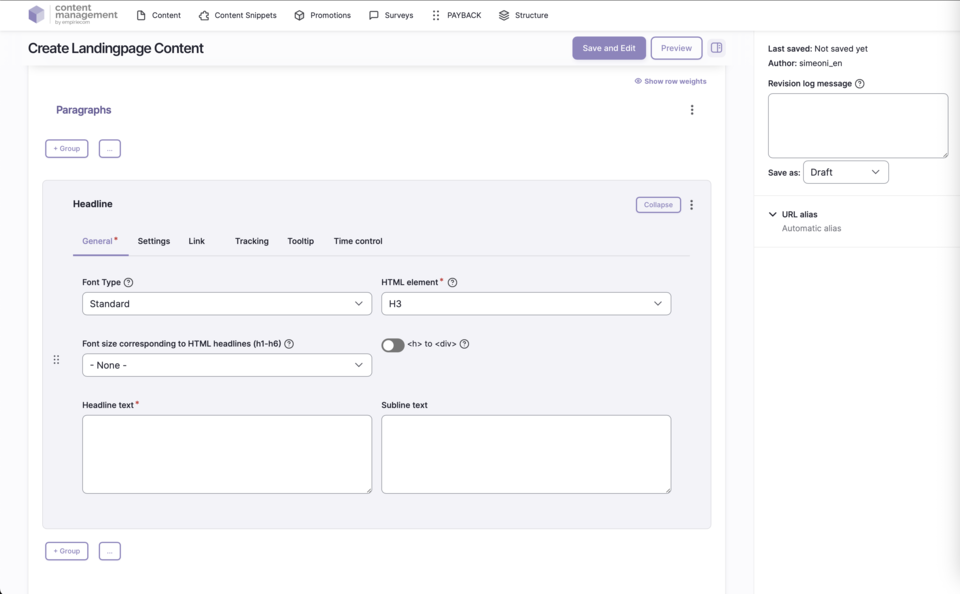
Features & Benefits
- Selection of HTML element (H1–H6) for the heading
- Alternatively: output as a container without an H tag possible
- Individual font size (visual size) selectable; standard font size if none is selected
- Tenant-specific font family selectable via dropdown
- Free text for the headline
- Subline/free tagline as additional text below the headline
Backend Configuration
Steps
- Create ContentType.
- Insert the “Headline” paragraph.
- Add the heading with the desired settings.
Usage Notes
General Configuration Options
| Field | Description |
|---|---|
HTML Element | Selection of heading tag (H1–H6) or output as a container without H tag |
Font Size | Visual size of the heading; standard size if “none” is selected |
Font Family | Tenant-specific font family selectable via dropdown |
Text | Text of the headline |
Tagline | Subline/free tagline below the headline |
Spacing Type | none | page width | page width with mobile spacing | window width |
Alignment | None/Standard | Left | Center | Right |
Vertical Alignment | None | Top (flex-start) | Bottom (flex-end) | Stretched (stretch) | Top | Center | Bottom |
Link | Target (_self, _blank), bonus number, anchor, highlight, search filter |
Tracking | Campaign ID, type, category, detail, name |
Tooltip | Activate/deactivate tooltip, position, promotion text or content snippet |
Personalization | Display for specific user groups (anonymous, logged-in customers, bonus program, credit affinity) |
Accessibility | Activate skip link, freely nameable |
Replace Content | Content can be dynamically replaced using Dynamic Yield ID |
Time Control | Control visibility of the headline by time (from/until) |
Buttons & Actions
- Collapse: Collapse section
- Add above: Add new section above
- Remove: Delete section
- Duplicate: Duplicate section
- Add to library: Save section as template